
- Published on
Proton Mail Guide 2026: Switch From Gmail, Plans
- Authors

- Name
- VPN Mall Editorial Team
This article contains affiliate links. If you buy through them, VPN Mall may earn a commission at no extra cost to you, and it does not affect how we evaluate services.
Prices and discounts in this article are as of 2026-10-28. Check the official site for current terms.
Featured service: Proton Mail
Limited-time dealEnds 11/30 · D-33
If you've used a Gmail address for over a decade, you may sometimes wonder whether Google is reading all your mail. Changing the address feels daunting, though. Shops, banks, schools and your employer already have it on file.
This guide is for exactly that person. If you're thinking about moving to Proton Mail, the email service from the Swiss company Proton, here's what's different, how to move and which plan to pick, in order.
First, the conclusion. You don't have to change everything at once. The lowest-pressure route is to keep Gmail, make new mail arrive in Proton Mail, then switch your important sites to the new address one at a time. This guide shows that flow step by step.
Feature descriptions here follow our Proton guides. For things that change often, such as prices, we give no numbers and say "check the official site."
Table of Contents
- What is Proton Mail?
- Why does it matter to so many people?
- What this guide covers
- How do Gmail and Proton Mail differ?
- How to read the table
- Three ways to move without dropping Gmail
- Method 1: connect Gmail inside Proton Mail
- Method 2: set up Gmail automatic forwarding
- Method 3: bring over past mail with Easy Switch
- What if you use Outlook or Yahoo?
- A gradual move instead of switching all at once
- Week 1: build the incoming path first
- Week 2: move your past data
- Week 3 and after: change the important places first
- The move at a glance
- Security features worth knowing after you move
- Tracker blocking
- When does end-to-end encryption apply?
- Email aliases (Proton Pass)
- Custom domains
- On a smartphone
- Proton Mail plans: how to choose
- When starting free is fine
- When paid is the better path
- Order of decisions
- The Proton Mail deal running now
- Treat older promotions as reference only
- A checklist before you move to Proton Mail
- Four forwarding safety checks
- If you only want certain senders
- Can you answer yes to these?
- When you get stuck during the move
- The confirmation mail doesn't arrive
- The same mail shows up in both places
- Too many promotional mails come across
- What about contacts and calendar?
- When is it fine to disconnect the Gmail link?
- A one-line summary for first-timers
- Who Proton Mail suits
- One last thing to remember
- Frequently Asked Questions (FAQ)
- Can I keep Gmail and still use Proton Mail?
- Should I use forwarding or Easy Switch first?
- Is mail encrypted if the other person is not on Proton Mail?
- Is the free plan enough?
- How big is the discount right now?
- Is the service available in my language?
- Final thoughts
- More to read
What is Proton Mail?
Proton Mail is an email service from Proton, which is headquartered in Switzerland. Rather than earning money from ads, it runs closer to a subscription model. The core features come to four:
- End-to-end encryption (E2EE): the message body is encrypted, so the operator can't read it.
- Tracker blocking: it removes hidden marketing tracking pixels and scripts from the message body.
- No ads: no ad banners show up in your inbox.
- Gmail integration: you can connect a Gmail account inside Proton Mail and handle receiving and sending together.
These facts are covered in our Proton Mail and Gmail direct integration guide.
Why does it matter to so many people?
The reason is simple. An email address is effectively the key to your digital life. Our Born Private campaign article compares email to a master key. Once you've chosen one, it's genuinely hard to change.
So more people want to pick an address that puts privacy first, either from the start or from today. For the big Google story and the wider debate about alternatives to big tech, see our piece on the EU fine and a Proton alternative.
What this guide covers
- A comparison of Gmail and Proton Mail.
- Three ways to move (Gmail connection, automatic forwarding, Easy Switch).
- How to pick a plan.
- The deal running now.
- Frequently asked questions.
How do Gmail and Proton Mail differ?
When you compare the two, the first thing to look at is the business model. It looks like this.
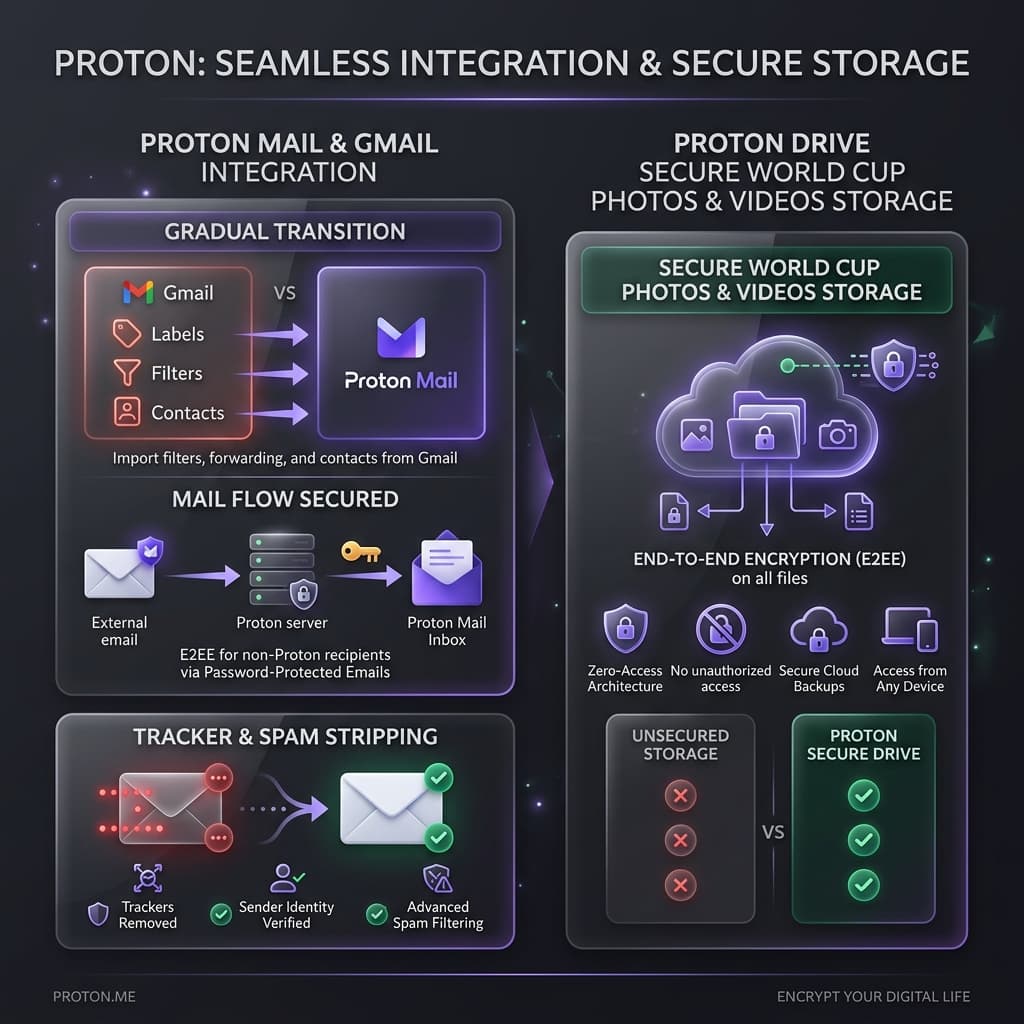
| Comparison item | Gmail | Proton Mail |
|---|---|---|
| Business model | Described as ad-based | Paid subscription, no ads |
| Message body encryption | Described as something Google can scan | End-to-end encryption (E2EE) supported by default |
| Ad tracker filtering | Allows marketing trackers as they are | Removes ad trackers from the message body |
| Sender address | gmail.com only | Choose between a Proton address and a connected Gmail address |
| Ad display | Ads appear in the inbox | No ads or promotional banners |
| Headquarters | United States | Switzerland |
The sources are the comparison tables in the Gmail integration guide and the Born Private article.
How to read the table
This table isn't meant to declare a winner. The right choice depends on what matters to you.
- If you use search, maps and documents from Google as one bundle, Gmail's convenience is large.
- If you dislike your mail being used for ad analysis, Proton Mail suits you better.
- You can use both together. The next section explains how.
Three ways to move without dropping Gmail
There isn't one way to move. Choose by situation, or combine them.
| Method | What it brings over | Fits when |
|---|---|---|
| Connect Gmail inside Proton Mail | Mail arriving at Gmail, received and sent inside Proton Mail | You'll keep the address for now and just want one app |
| Automatic email forwarding | New mail that arrives from now on | You want to avoid missing mail during the move |
| Easy Switch | Past mail, contacts and calendar | You want to bring existing data over in one go right after sign-up |
This comes from the Easy Switch comparison table in the forwarding guide and the Gmail integration guide.
Method 1: connect Gmail inside Proton Mail
The order runs like this.
- Sign in to Proton Mail in a web browser and click Settings at the top right.
- In the left menu, open the Import & Sync tab.
- Press the Connect Gmail button to run the wizard.
- Sign in with your Google account and approve the OAuth permissions.
- Choose the mail period to import and whether to keep labels, then finish.
When the connection is done, the Gmail account appears in the left menu. When you write a new message, you can pick the sender from your Proton address (@proton.me) and the connected Gmail address. The recipient gets mail as usual, so you don't need to announce that you changed address.
Screen names and menu positions can change with updates. If your screen looks different, check Proton's official guidance first.
Method 2: set up Gmail automatic forwarding
Forwarding is like a mail-redirect service after you move house. The forwarding guide gives seven steps for Gmail.
- Sign in to Gmail on a computer, open Settings (the cog) and choose See all settings.
- Go to the Forwarding and POP/IMAP tab.
- Press Add a forwarding address.
- Enter your Proton Mail address (for example [email protected]) and continue.
- In the confirmation mail that reaches Proton Mail, click the approval link or copy the 6-digit code.
- Go back to the Gmail settings screen, enter the code and press Verify.
- Tick the option to forward a copy of incoming mail, choose how to treat the original, then save changes.
There are four options for what to do with the original in step 7.
| Option | Meaning |
|---|---|
| Keep Gmail's copy in the inbox | Leave a copy in Gmail as a backup. The guide recommends this |
| Mark Gmail's copy as read | You'll handle it in Proton Mail, so Gmail marks it as read |
| Archive Gmail's copy | Clear out your Gmail inbox |
| Delete Gmail's copy | Receive only in Proton Mail and delete from Gmail |
At first we recommend keeping a copy. If you mistype the forwarding address, the mail doesn't vanish. That caution is also in the same guide's security checklist.
Method 3: bring over past mail with Easy Switch
Forwarding moves only the mail that arrives from now on. Past mail stays in Gmail. The tool for that is Proton's Easy Switch. According to the guide, it brings all past received mail, contacts and calendar in one go.
So the guide recommends these four steps.
- Create a new Proton Mail account.
- Use Easy Switch to bring over your Gmail history and contacts.
- Turn on automatic forwarding in Gmail so new mail also reaches Proton Mail.
- Change the email address on important sites and financial institutions to your new Proton address, one by one.
What if you use Outlook or Yahoo?
The same guide also sets out Outlook and Yahoo. For Outlook, you go to Settings, Mail, Forwarding, turn on forwarding and enter your Proton Mail address. For Yahoo, you go to Settings, More settings, Mailbox, click your own address and fill in the forwarding field. For the exact click order, see the forwarding guide.
A gradual move instead of switching all at once
Changing an address is closer to a marathon. The Proton VPN Gmail integration article also recommends going a little each day. Below is that idea turned into a week-by-week checklist.
Week 1: build the incoming path first
- Create a free Proton Mail account.
- Set up a Gmail connection or automatic forwarding.
- Keep a forwarding copy in Gmail too.
Week 2: move your past data
- Use Easy Switch to bring over old mail and contacts.
- Open a few messages to check they appear correctly.
Week 3 and after: change the important places first
As the earlier tip says, changing one or two sites each weekend keeps the load light. Here's an order to try.
- Core accounts such as financial institutions and your phone provider
- Shops and subscription services you use often
- Newsletters and less important sites
Verification mail reaches Proton Mail directly, so there's little worry about accounts getting tangled. Only after all your core accounts have moved do you need to decide whether to disconnect the Gmail link.
The move at a glance
| Stage | What to do | Tool |
|---|---|---|
| Sign-up and import | Create the account, copy past data | Proton Mail, Easy Switch |
| Live receiving | Prevent missing new mail | Gmail connection or automatic forwarding |
| Address swap | Change important sites to the new address first | Each site's account settings |
Security features worth knowing after you move
Changing the address alone changes some things. These are the features that matter most.
Tracker blocking
Marketing mail often hides a 1x1 tracking pixel you can't see. It gathers things like when you opened the message and which device you used. Proton Mail removes these tracking elements from the message body. The Gmail integration guide explains that the filter applies to imported mail even while Gmail is connected.
When does end-to-end encryption apply?
Encryption has conditions. The FAQ in the Proton VPN Gmail integration article explains that it applies automatically when the other person also uses Proton Mail and you send from inside Proton. What if they aren't a Proton user? The forwarding guide introduces a password-protected message feature. The recipient opens the message with that password.
Email aliases (Proton Pass)
When you sign up for a site, try a random alias instead of your real address. Mail sent to the alias arrives in your Proton Mail inbox. If a particular site starts sending spam, you switch off just that alias and cut it off at once. This feature is in the Proton Pass section of the forwarding guide.
Custom domains
Some people will want to use their own domain (for example @mycompany.com) in Proton Mail. The guide says it works by registering MX records and TXT records (SPF, DKIM, DMARC) in DNS. Check the official site for the detailed steps and which plans support it.
On a smartphone
There are official iOS and Android apps, and they're described as offering encrypted push notifications and biometric (Face ID, fingerprint) lock. Even if you lose your phone, you can make it hard for someone else to open your mail.
Proton Mail plans: how to choose
Let's be straight here. There are no consistent figures for each plan's exact price and storage. So we don't invent numbers. We only give the criteria for choosing. For actual prices and contents, see Proton's official pricing page.
| Option | Fits | What to check |
|---|---|---|
| Free plan | People who want to try it, or need a second address | A lifetime free plan is described in the Gmail integration guide. Check limits on the official site |
| Paid plan (Mail Plus and others) | People who want it as their main address, with more storage and features | Check price and included features on the official site |
| Proton bundle | People who also want drive and a password manager | Check contents and price on the official site |
When starting free is fine
- When you want to try the connection first and leave Gmail as it is
- When you need a second address for new site sign-ups
- When you want to start lightly, like a family member's first email
You can try the free plan with no pressure and move to a paid plan later. The earlier forwarding coverage recommends the same order.
When paid is the better path
- When you've decided to make Proton Mail your main address
- When you want a custom domain
- When you also want drive or the password manager alongside mail
Descriptions of drive-type services vary a little from one explanation to the next, as in the comparison table in the Proton VPN Gmail integration article. Check the latest on the official page before you buy.
Order of decisions
- Try the connection and forwarding first on a free account.
- If it feels right as a main address, think about upgrading.
- At that point, check whether a deal is running. The next section sums up the current one.
The Proton Mail deal running now
Here is the deal information on record.
| Item | Detail |
|---|---|
| Deal name | Black Friday |
| Offer | 60% off the Mail Plus 12-month plan |
| Period | Starts 2026-10-26, ends 2026-11-30 |
| Source | Proton partner email (2026-10-20) |
Deals can disappear after the end date. Just before you pay, confirm on the official checkout screen that the discount is applied.
More Proton deals are on the Proton Mail deal page, and other services are on the full deals page.
Check plans through the official Proton Mail partner link
Treat older promotions as reference only
A first month for $1 and up to 40% off the annual subscription. That was from June 2026, so whether it applies today is unknown. What applies now is the deal in the table above and the official checkout screen.
A checklist before you move to Proton Mail
Mistakes always show up at the end of a move. Checking the items below prevents most of them.
Four forwarding safety checks
This sums up the security checklist from the forwarding guide.
- Check the kept copy: at first, leave a copy in Gmail too.
- Check the address for typos: when you enter the code, read the spelling of your Proton address again.
- Check whether spam is forwarded: spam from your old inbox can come across too. Turn on Proton's spam filter.
- Swap addresses regularly: don't lean on forwarding forever. Change the address on the sites you use often yourself.
If you only want certain senders
Use a Gmail filter. In settings, go to Filters and Blocked Addresses, make a new filter, enter an important domain such as your bank in the From field, and set it to forward to your Proton address. You can screen out promotional mail and receive only the important messages.
Can you answer yes to these?
- Have you created a Proton Mail account and signed in?
- Did you write your recovery information down somewhere safe?
- Have you fixed the change order for your 3 core accounts?
- Did you turn on the option to keep a forwarding copy?
- Did you send and receive a test mail through the connected Gmail?
If all five are yes, you're ready to move.
When you get stuck during the move
Here are common worries, answered from our Proton guides.
The confirmation mail doesn't arrive
When you set up forwarding, Gmail sends a confirmation mail to your Proton Mail address. You have to open it in your Proton Mail inbox and click the approval link or copy the 6-digit code into Gmail to finish. If you mistyped the address, the confirmation goes somewhere else, so first re-read the spelling of what you entered.
The same mail shows up in both places
With the keep-a-copy option on, the same message stays in Gmail and Proton Mail. That isn't an error. It's a safety net. When the move is nearly done, switch to mark-as-read or archive to tidy your Gmail inbox.
Too many promotional mails come across
If your old inbox has a weak spam filter, spam can be forwarded too. Turn on Proton Mail's spam filter, and you can also forward only the senders you need, such as your bank, with a filter.
What about contacts and calendar?
The forwarding guide describes Easy Switch as a tool that brings contacts and calendar too. How far each item can come across can change with screens and policy, so check the official guidance before you run it.
When is it fine to disconnect the Gmail link?
After you've changed the email address on all your core accounts to the new Proton address. Disconnect earlier and you may miss verification mail for services still registered under your Gmail address. There's no hurry. Watch for a few weeks to see whether hardly any new mail still arrives in Gmail, then decide.
A one-line summary for first-timers
It looks complicated, but there are really only three things to do. Create a Proton Mail account, connect Gmail or turn on forwarding, and change the address on important sites one at a time. Spread across a few weeks, you can move without fear of missing mail. If you get stuck, come back to the matching section of this guide.
Who Proton Mail suits
There's no answer that's right for everyone. Use the table to size up your own situation.
| Your situation | Suggested direction |
|---|---|
| I use many Google services and can't switch right now | Keep Gmail and start by connecting it to Proton Mail |
| I hate ad tracking in mail most | Gather new mail in Proton Mail to use tracker blocking |
| I need a newly created address | Make a free Proton Mail account as a second address |
| I'm preparing a child's first email | Read the Born Private article first |
| I need company domain mail | Check custom domain support on the official site |
One last thing to remember
Privacy isn't finished in one go. It's built from one email and one site at a time. Today, just create a free account and connect Gmail. Do the rest slowly, each weekend this month.
Frequently Asked Questions (FAQ)
Can I keep Gmail and still use Proton Mail?
Yes. Connect Gmail to Proton Mail and you can receive Gmail messages inside Proton Mail and choose your Gmail address as the sender when you reply. The Proton VPN Gmail integration article says that if you disconnect, messages already imported aren't deleted, and Google's original inbox stays as it was.
Should I use forwarding or Easy Switch first?
Usually the natural order is Easy Switch first, to bring over past mail and contacts, then forwarding to receive new mail. The forwarding guide introduces the same order in four steps.
Is mail encrypted if the other person is not on Proton Mail?
Automatic end-to-end encryption is described as applying when the other person is also a Proton Mail user. If they aren't, the forwarding guide says you can use the password-protected message feature.
Is the free plan enough?
You can certainly start free. A lifetime free plan is described in the Gmail integration guide. Check storage limits and included features on the official site.
How big is the discount right now?
As of 2026-10-28, the registered deal is Black Friday, 60% off the Mail Plus 12-month plan, ending 2026-11-30. Check the latest on the Proton Mail deal page.
Is the service available in my language?
Check the official site. Supported languages aren't covered in the material this guide is built on, so we can't state them.
Final thoughts
To sum up:
- You don't need to leave Google right now. Start by connecting Gmail.
- Bring new mail by forwarding and past mail with Easy Switch.
- Choose a plan after trying free. Check exact prices on the official site.
- The registered deal is 60% off the Mail Plus 12-month plan, ending 2026-11-30.
Start Proton Mail free and check plans
More to read
Compare other VPNs
Based on current official promotions. Confirm the final terms on each official site.
NordVPN
- Limited-time official deal
- Ends 11/30
Surfshark
- Limited-time official deal
- Ends 12/01
ExpressVPN
- Limited-time official deal
- Ends 11/03