- Published on
Travel eSIM Guide 2026: eSIM vs Roaming vs Local SIM
- Authors

- Name
- VPN Mall Editorial Team
This article contains affiliate links. If you buy through them, VPN Mall may earn a commission at no extra cost to you, and it does not affect how we evaluate services.
Featured service: Saily
Check current prices and discounts on the official site.
Roaming for a day or two. An eSIM for a week or so of independent travel. A physical SIM if you truly need a local number. Install the eSIM on home Wi-Fi, and switch the data line on after you arrive. Keep your home SIM in for texts.
After the flights are booked, the next thing that trips people up is internet access. Should you queue for a SIM at the airport, turn on roaming, or buy an eSIM before you leave?
This guide helps you settle that before departure. You'll find a comparison, a way to check your phone, installation and activation steps, a troubleshooting order, and tips for Japan, Europe, the US and Southeast Asia.
Table of Contents
- Three ways to get online abroad
- When pocket Wi-Fi still makes sense
- Pick by trip length and need
- Check that your phone supports an eSIM
- Minimum models differ between guides, so don't assume
- Install at home, activate on arrival
- What to do before you leave
- What to do when you land
- Dual SIM setup that keeps texts working
- What to try when the internet doesn't work
- Habits that save data
- Tips by destination
- Japan: if the map stops, the itinerary stops
- Europe: check the next country the night before
- The United States: check what's left before you drive
- Southeast Asia: if the ride app drops, you can't move
- How Saily is described
- Frequently Asked Questions (FAQ)
- Q1. Can my phone use an eSIM?
- Q2. Can I still get texts on my Korean number?
- Q3. Can I install before I leave?
- Q4. What if I run low on data?
- Q5. Is the 10% code still usable?
Three ways to get online abroad
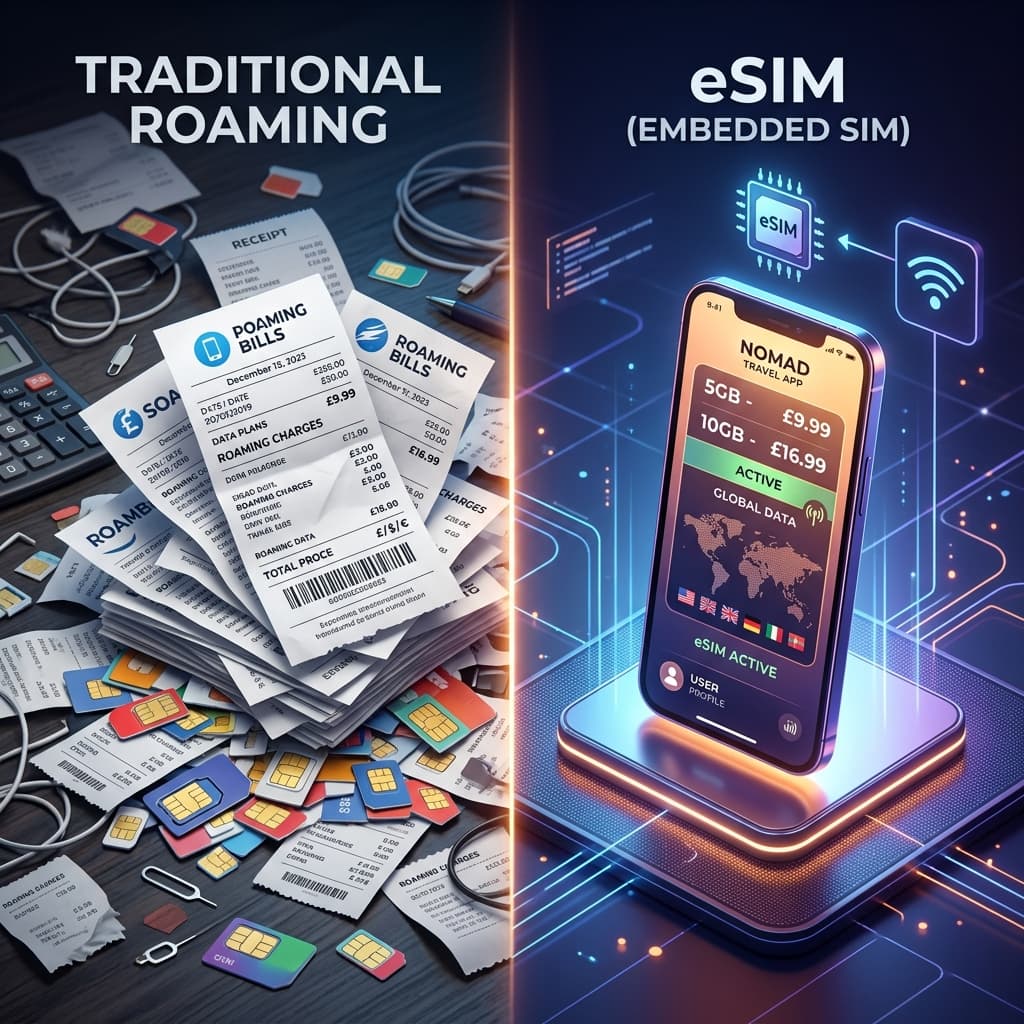
There are three choices: carrier roaming, a local physical SIM, and an eSIM, which is a digital SIM that lives inside your phone. Pocket Wi-Fi still exists, but it means carrying and charging a separate device, so it's mentioned here only for reference.
| Criteria | Carrier roaming | Local physical SIM | eSIM |
|---|---|---|---|
| When you prepare | Apply before you go, or switch on after arrival | Buy at the airport or in town | Install in an app before departure |
| Activation | Turn roaming on in settings | Open the tray and swap the chip | Install a profile, then switch the line |
| Texts from home | Yes | Hard if you remove your home SIM | Keep the home SIM, change only data |
| Chip loss | None | You might lose the home SIM you took out | None |
| Device limits | Most phones | Most phones | Phones that support eSIM |
| Right after landing | Works immediately | After queuing and swapping | Switch the line if installed in advance |
| Cost feel | Usually the most expensive | Lower than roaming | Described as similar to or lower than a local SIM |
The cost row is a rough comparison, not today's price list. Check current prices in your carrier's app and in the eSIM app.
Our comparison of roaming, physical SIMs and Saily includes a per-day cost table. It puts roaming at 10,000 to 13,000 won a day, which works out to 50,000 to 60,000 won for a four-night, five-day trip. The per-day figures in the same table are 10,000 to 13,000 won for roaming, 3,000 to 5,000 won for a local SIM and 2,000 to 4,000 won for Saily. Those were the numbers at the time of writing, and the figure on your checkout screen is what counts.
An earlier guide made a separate estimate for seven days in Japan: roughly 70,000 to 100,000 won for roaming, 30,000 to 50,000 won for pocket Wi-Fi, 20,000 to 30,000 won for a generic eSIM and 10,000 to 20,000 won for Saily. That guide described these as rough estimates, so use them only to get a feel for the budget. The price estimates and country plan examples are worth a read next.
When pocket Wi-Fi still makes sense
It remains useful when several people share one device and a phone doesn't support eSIM. The unit weighs around 150 to 200 grams, and charging, returning it and paying for loss are the drawbacks. For one or two travellers who each have a phone, an eSIM is lighter to carry.
Some guides also mention using a hotspot to connect a laptop, though one adds that rules vary between plans. Check on the purchase page.
Pick by trip length and need
The length of the trip and whether you need a local number change the answer. Here are the criteria that several guides repeat.
| Trip | Suggested option | Reason |
|---|---|---|
| One-night business trip | Carrier roaming | Almost no time to set up |
| About a week of independent travel | eSIM | Install before departure, use right after landing |
| Several countries in one trip | Regional eSIM | No new chip for each country |
| Long stay needing a local number | Physical SIM | Delivery apps and offices may ask for a local number |
| Phone without eSIM | Physical SIM or roaming | You can't receive a digital profile |
| A companion who dislikes settings | Roaming or someone else's hotspot | Familiar, though it can cost more |
A short business trip doesn't automatically mean roaming. If your phone supports eSIM, installing at home three days before you fly saves airport time. If it doesn't, reading more about eSIMs won't add any options, which is why checking your device comes first.
For family trips you don't have to pick one method. Newer phones can each have an eSIM, while a less confident relative can use roaming or a hotspot. Hotspots drain battery and data fast, so if you plan to share, allow extra data and check whether you can top up in the app.
Check that your phone supports an eSIM
An eSIM isn't a feature of every phone. A phone locked by a contract may also reject a profile from another provider. So check these in order before you pay.
- Open Settings and go to Cellular or Mobile data.
- Look for Add eSIM or Add mobile plan.
- If you still have instalments to pay, ask your carrier whether the phone is unlocked.
- If many eSIMs are already stored, see whether there's room to remove ones you no longer use.
On an iPhone it's under Settings, and on Android it's often under Connections or SIM manager. Menu names differ between devices. Searching for eSIM in the settings search box also works.
Another method is to dial *#06# and see whether an EID entry appears. An earlier guide describes an EID as a sign that the hardware can accept an eSIM. A carrier lock can still block installation, so don't stop at the EID.
Minimum models differ between guides, so don't assume
- iPhone is listed as XS and newer, or XR and XS and newer. One guide also includes the 2nd and 3rd generation SE.
- A 2025 guide says iPhone 14 and newer sold in the US may have no physical SIM slot. In that case the eSIM is effectively the main line.
- For Galaxy, one guide says S20 and newer, and another says recent Korean-market models such as the S23, Z Flip4 and Z Fold4 and newer.
- Other guides list Pixel 3 and newer, Huawei P40 and newer, Xiaomi 12T Pro and newer, and Oppo Find X3 Pro and newer.
Rather than memorising model names, the settings menu and the support check in the Saily app are more accurate. A launch notice says phones bought abroad and phones from the domestic market can differ in support even under the same name. If you check on the day you leave, roaming is the only fallback. Check at least a week ahead.
Carrier locks often appear on phones with instalments outstanding. A locked phone can accept another eSIM yet fail to connect to the network. Just ask customer service whether the phone needs unlocking to add an eSIM. Unlocking can take a few days, so sort it out before you pack.

Install at home, activate on arrival
Installing an eSIM and using its data aren't always the same button. The common mistake is to install at home and then switch the line on, so that the plan's validity starts before you've left.
Look for two phrases on the purchase screen: starts on install, or starts after arrival. If the wording is unclear, only add the profile and leave your cellular data on your home SIM.
What to do before you leave
- Download the Saily app from the App Store or Google Play. Check the developer name.
- Choose the destination, the length of stay and how much data you need. For several countries, make sure the regional plan covers them all.
- Enter a discount code before paying if you have one. The code
vpnmallis described as giving 10%. Check that the price changed before you pay. No end date is given, so don't trust the code if the price doesn't move. - Finish installing the eSIM on home Wi-Fi. Pressing install in the app takes you to settings. One 2025 guide also mentions a QR code in some cases.
- Rename the line to something like Travel or Saily so it's easy to spot on arrival.
- Turn off data roaming on your home SIM and keep your home number as the voice line.
Installation needs internet. If you try to install at your destination, you may have no internet to do it with. A comparison guide likens it to leaving the key inside the house and locking the door.
What to do when you land
- Turn off airplane mode.
- Switch cellular data to Saily.
- Turn on data roaming for the Saily line only. Your home line's roaming stays off.
- Open maps or messaging to confirm the connection.
- Send a short arrival message home.
An easy way to remember the two switches: roaming on for the Saily line, roaming off for the home line. An eSIM attaches to a foreign network, so if roaming is off on that line, the bars may show but the internet may not work.
Dual SIM setup that keeps texts working
- Default voice and texts: your home SIM
- Mobile data: Saily
- Data roaming on the home SIM: off
- Data roaming on Saily: on
With this arrangement, bank verification texts and card payment alerts still arrive during the trip. Comparison guides repeat that pulling out your home SIM cuts those texts. That is the biggest stress with physical SIMs.
When you get home, set mobile data back to your home SIM. Forget that and you might land with no data in your own country. Remove an expired profile only after you've confirmed the plan has ended. Deleting a profile because it fails mid-trip may mean you can't use it again, as one comparison warns.
What to try when the internet doesn't work
Most problems come down to one setting. Before you delete a profile in a panic, work through these in order.
- Check that cellular data is assigned to Saily.
- Check that data roaming is on for the Saily line.
- Check that data roaming is off on the home line. If it's on, a roaming charge message can arrive.
- Turn airplane mode on and off.
- If it still fails, restart the phone.
- Look at the plan status and remaining data in the app.
- Connect briefly to airport Wi-Fi and message in-app support. Remember it's public Wi-Fi.
A dead spot may simply be deep inside a building. Move to a window or step outside and try again. If data disappears too fast, check whether photo backups, app updates or video autoplay are running over cellular. On a trip, set them to Wi-Fi only.
Support is described as 24-hour chat. According to the 2025 guide, email and Korean-language support are also available. Response times aren't published, so finishing an install test at home before a tight schedule is safer.
Habits that save data
Closing the gaps beats buying a bigger plan.
- Download Google Maps offline before you go.
- Download translation language packs at home.
- Save booking confirmations as screenshots.
- Set photo cloud backup to Wi-Fi only.
- Turn off auto-download in messengers.
- Drop video quality one step.
Here are the data amounts the 2025 guide suggests: a short business trip with light use, 1GB; a week of normal use, 3GB; a week of heavy use, 5GB; a long stay or streaming, 10GB or more. For Japan, 5GB for seven days of ordinary sightseeing, or 10GB if you upload lots of photos and video. For two or three European countries, 10GB for 15 days, and 20GB for 30 days of backpacking. For a US city trip, 10GB for seven days, or 20GB for 15 days with a rental car. For a Southeast Asian city, 3GB for seven days, or 5GB if islands are on the route. That combination is the guide's recommendation. Check separately that the same products exist in the app today.
If you run short, several guides say you can top up in the app. Extra data is added to the existing line without scanning a new QR code. So guides suggest starting with a size based on maps and messaging and adding more when you upload many photos, rather than buying the biggest plan first.
Tips by destination
The main places covered are Japan, Europe, the US and Southeast Asia. Australia, New Zealand, Dubai and Turkey appear only in the 2025 guide's support list and have short usage tips. If you're heading there, confirm support in the app.

Japan: if the map stops, the itinerary stops
Most guides focus on Tokyo, Osaka and Kyoto. You walk with food spots and transport apps open, so the point that comes up again and again is that you only change the line after landing. A Japan review says you don't have to look for a SIM booth after you land at Narita or Haneda.
The network names differ between guides. The Japan review and a launch notice mention Softbank and KDDI, while a 2026 guide says Softbank or Docomo. Which is right depends on the app and the local display, since these guides disagree.
The review says maps followed smoothly in Shinjuku and Shibuya, and that YouTube 4K played without breaks at Shibuya. That's one day's experience. A checklist guide says the same location can feel different in peak season. It's better to leave high-quality video for hotel Wi-Fi to save data.
For a short weekend, the guides suggest starting with a small amount and topping up if needed. A week across Osaka and Kyoto means more photos, so the review says to push backups to hotel Wi-Fi. For families, it's either one eSIM each or one person turning on a hotspot. Hotspots use more battery.
Japan has plenty of convenience-store and cafe Wi-Fi. Both the review and the checklist repeat the advice to log in and pay over your own data line, and to switch on a VPN when you use public Wi-Fi. For speed impressions in more detail, see the Japan Saily review.
Europe: check the next country the night before
France, Germany, Italy, Spain and the UK appear by name. If you cross borders by train, the guides say buying a SIM for every country wastes time. Choose a regional plan, but confirm in the app that every country you visit and pass through is included.
A 2025 guide says Wi-Fi in Europe tends to be limited. Rather than counting on museums and cafes, it recommends downloading offline maps. A launch notice says the phone switches to a local network such as Vodafone or Orange when you cross a border. The network you actually join can vary from place to place.
The night before you cross a border, check that the next country's plan is in place. If it's already a regional plan, you may not need to buy more. Reading the product description again is the safest move.
The United States: check what's left before you drive
US guides point out that distances are long and a rental car's navigation runs for hours. The 2025 guide gives different data amounts for city sightseeing and long drives, so look again at the amounts above. It notes that outlying places such as national parks may have weak signal. Offline maps are your insurance.
A launch notice says the service combines AT&T and T-Mobile networks to reduce dead zones. Canada also appears in the 2025 guide's support list, but there are no separate tips for it. If you're only visiting Canada, check in the app.
Hotel and Starbucks Wi-Fi are mentioned. Don't rely on shared networks for work email or payments. Several guides advise using your data line or a VPN as well.
Southeast Asia: if the ride app drops, you can't move
Thailand, Vietnam and Singapore appear by name. The 2025 guide says cities may get 4G or 5G while rural areas may be closer to 3G. To use a ride-hailing app like Grab, your data needs to be working before you reach the hotel.
If the signal fails in the heat of the street, you'll be stuck, so finish installing before departure. A 2026 guide says crowded places such as night markets can slow down. Save booking confirmation emails as screenshots.
| Destination | What to watch | What to do ahead |
|---|---|---|
| Japan | Maps, transport, connecting right after landing | Install at home, switch the line after arrival |
| Europe | Several countries, regional plans | Check that your countries are included |
| United States | Long navigation, weak signal outside cities | Offline maps, check remaining data before driving |
| Southeast Asia | Ride-hailing apps, city versus countryside | Test the connection before check-in |
How Saily is described
Saily is a travel eSIM from Nord Security, the company behind NordVPN and NordPass. You choose a country and a plan in the app, install it, then use it as your data line at your destination.
Here are the features that come up repeatedly.
- There's no physical chip to pull out, so there's nothing to lose.
- You can receive texts and calls on your home number while swapping only data.
- Supported countries are given as more than 150 in the 2026 articles and more than 180 in the 2025 guide. The numbers differ, so check the latest list in the official app.
- Plans are split by duration and size. Examples in the guides are 1GB, 3GB, 5GB and 10GB, and 7, 15 and 30 days.
- A launch notice says the connection cuts out when the data runs out. It isn't just a slowdown, it's a stop. You can top up in the app.
- Some guides say hotspots work, and others say it varies by plan. Look at the purchase page.
- A 2025 guide says refunds are possible before activation and hard after it's switched on.
- Support is described as 24-hour chat, and one guide says Korean is included.
- Central billing for businesses and remote top-ups are covered in detail only in the NordVPN and Saily guide. For personal travel you can skip that section.
The vpnmall code for 10% appears in the Japan review and the launch notice. A May 2026 guide described it as a standing 10% but gave no end date. On 22 September 2026 there was a partner promotion announcement, which mentions only a partner-only discount code and free trial data. No discount rate, free data amount or end date was published. Just check that the final price changes at checkout.
Check Saily plans and supported countries
Several guides advise using the same company's VPN when you pay on public Wi-Fi or when an app from home blocks overseas access. Discount rates vary by time, so check the current price on the page below.
For a more step-by-step view of installation screens, see the Saily installation guide 2026. A countdown calendar from three weeks before departure is in the year-end travel data checklist.
Frequently Asked Questions (FAQ)
Q1. Can my phone use an eSIM?
First look for an add-eSIM menu in your settings. Guides disagree on the minimum models: iPhone XS or XR and newer, and Galaxy S20 and newer or recent Korean-market S23, Flip4 and Fold4 models. If the menu is there, support is likely, but a carrier lock can block it. Check once more in the app before you leave.
Q2. Can I still get texts on my Korean number?
Yes. Don't remove your home SIM. Split the lines so that voice is your home number and data is the eSIM. Keep data roaming on the home SIM turned off to avoid roaming charges.
Q3. Can I install before I leave?
The guides recommend installing on home Wi-Fi in advance. Whether the plan starts at install or after arrival depends on the purchase screen. It's safer to turn the line on after you land.
Q4. What if I run low on data?
Several guides say you can add data to the existing plan in the app. You don't need to install a new eSIM. One guide says the internet stops when it's used up, so check what's left before a journey that needs maps.
Q5. Is the 10% code still usable?
The code vpnmall is described as giving 10% at the payment step. No end date is given. Check that the final price changes before you pay. If it doesn't, the code isn't applying to this purchase.
Compare other VPNs
Based on current official promotions. Confirm the final terms on each official site.
NordVPN
- Limited-time official deal
- Ends 11/30
Surfshark
- Limited-time official deal
- Ends 12/01
ExpressVPN
- Limited-time official deal
- Ends 11/03